

Go to API Dashboard
Create teams, invite members, and manage billing.
Create a team
Open the team switcher
Click the team name in the top-left of the dashboard.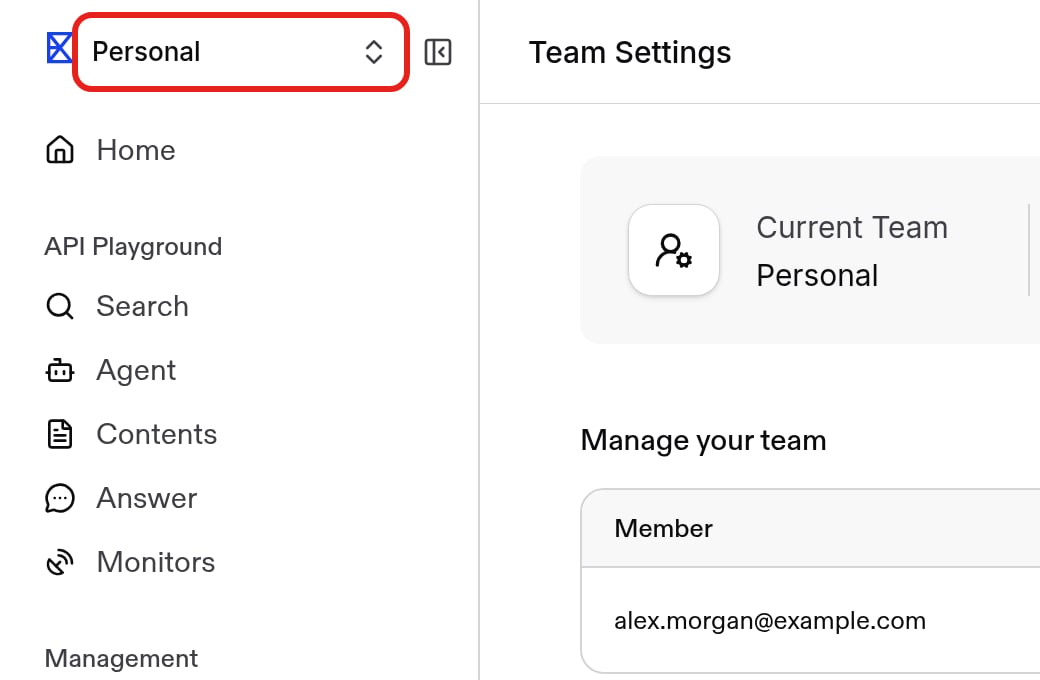
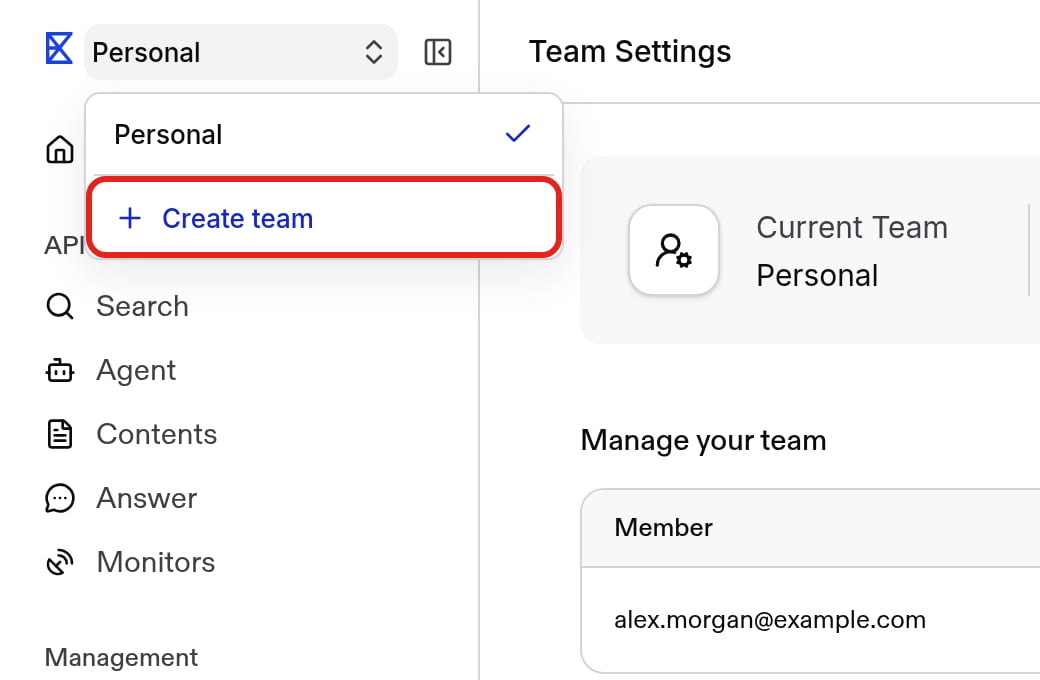
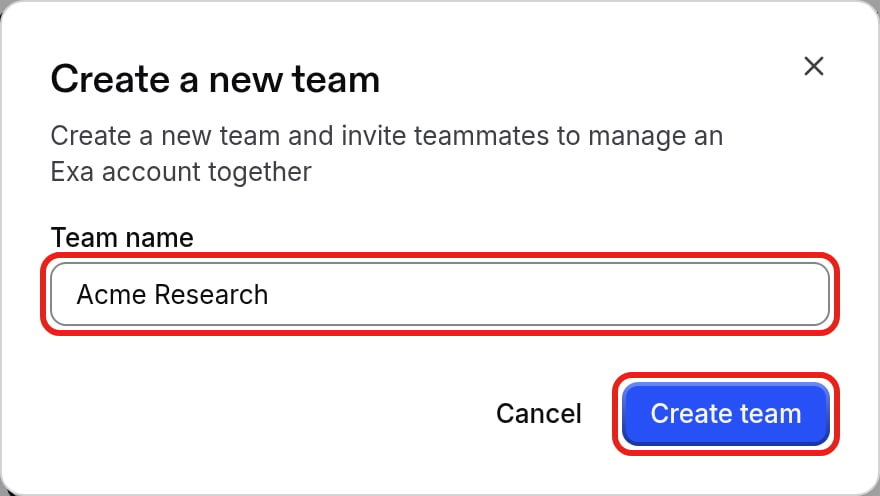
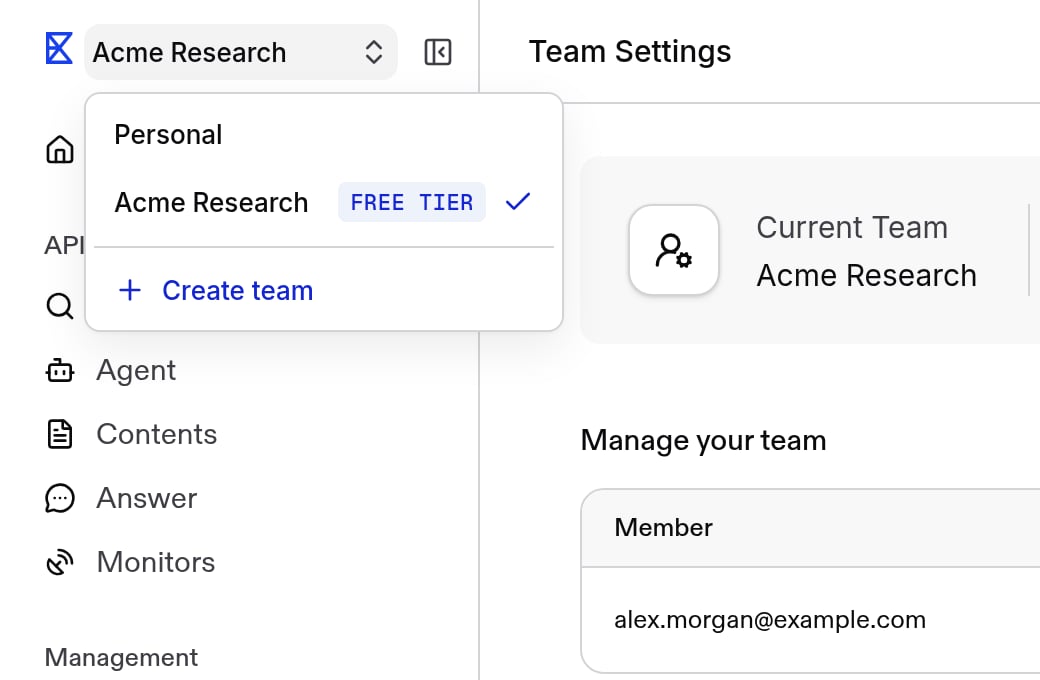
Invite people to your team
Owners and managers can invite members from Team Settings.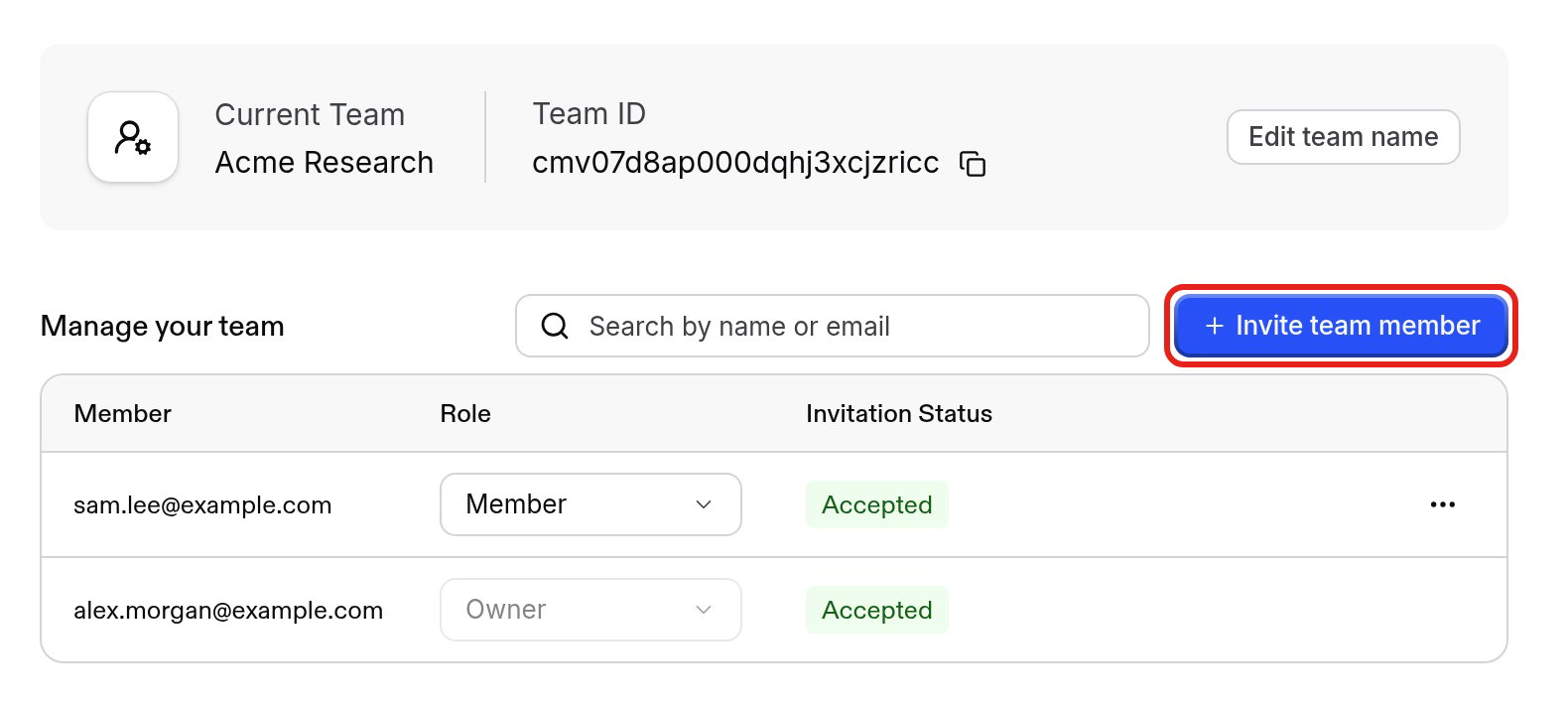
Send the invite
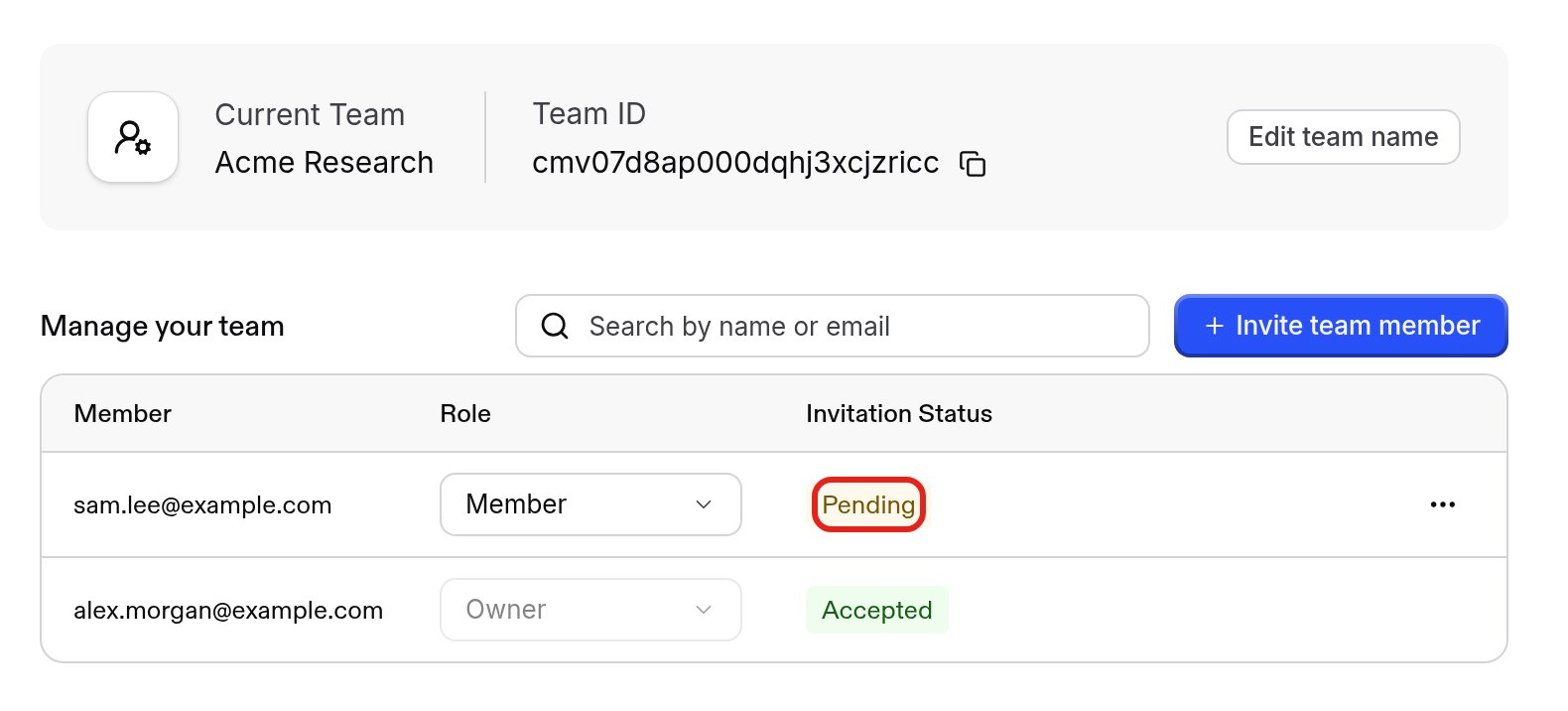
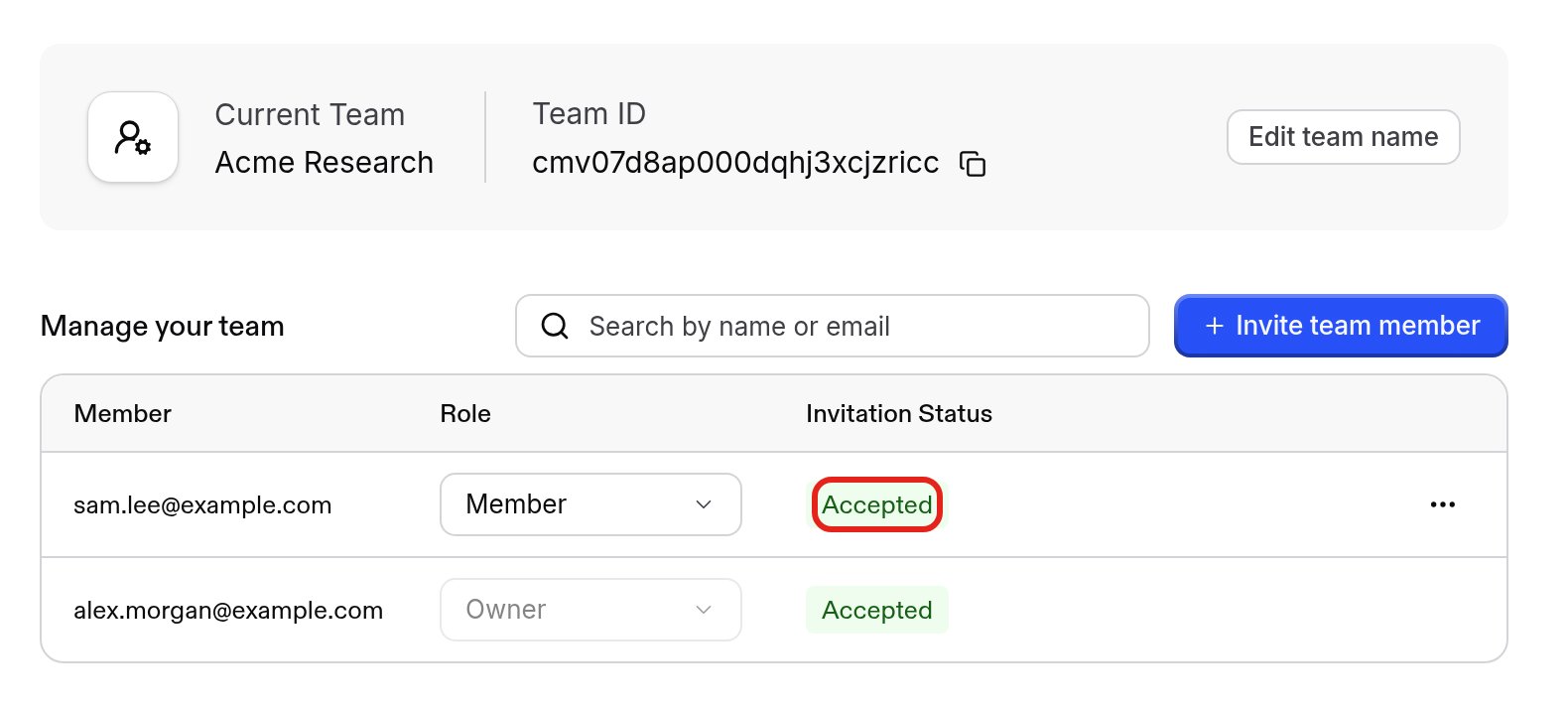
Choose a role, enter their email, and click Send invite. To share a link instead, click Copy an invite link to share.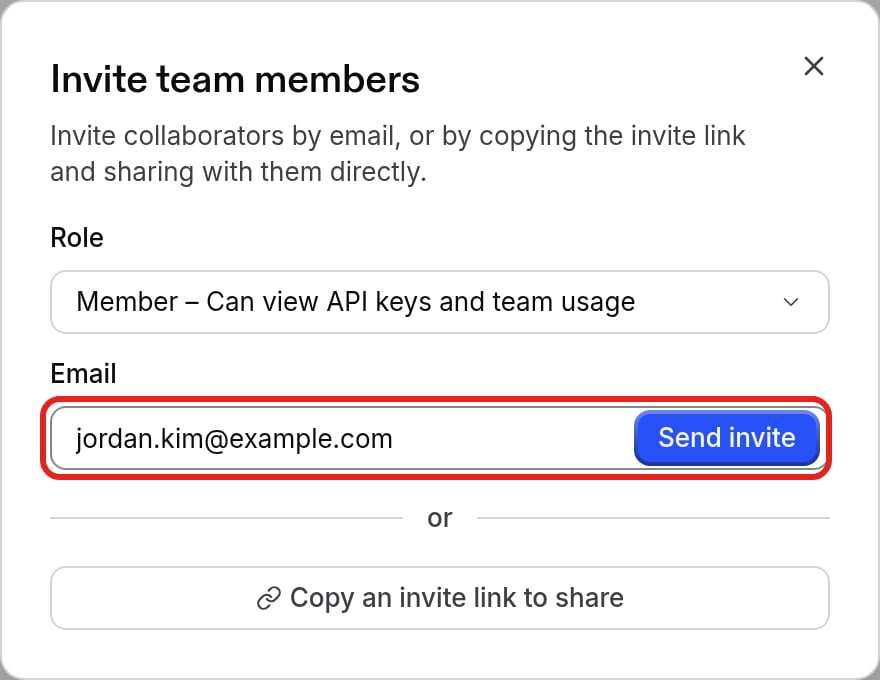

Top up a team’s balance
Credits belong to a team, so top up each team separately.Click Top up balance
Open Billing and click Top up balance.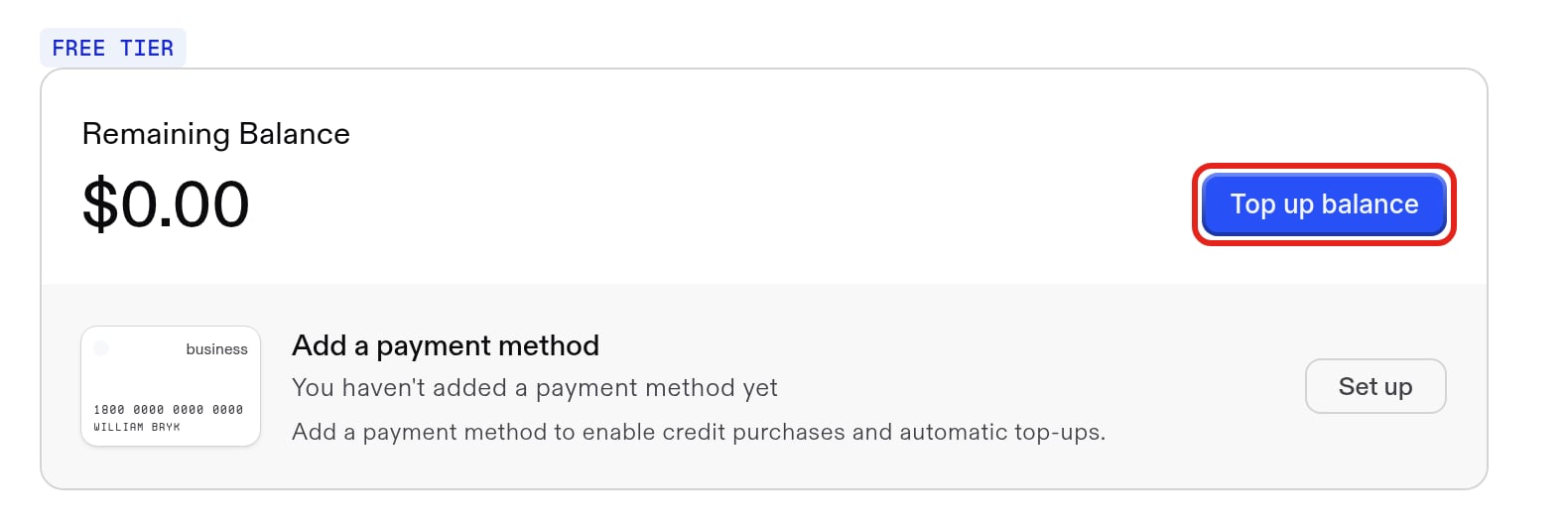
Enterprise customers can also group several teams under an Exa organization with SSO and directory sync. Contact support@exa.ai to set one up.
Team Management API
Create and manage API keys programmatically with the Team Management API.The Team Management API is enabled per team. It authenticates with a service account API key, which is created from the Service keys tab on the API keys page once the feature is enabled for your team. Contact support@exa.ai to request access.